Convert Any Video to MP4 With H.264 and AAC Using FFmpeg
Convert MOV, MKV, AVI or WebM files to a widely playable MP4 with H.264 video and AAC audio using one FFmpeg command, and learn what each option does.
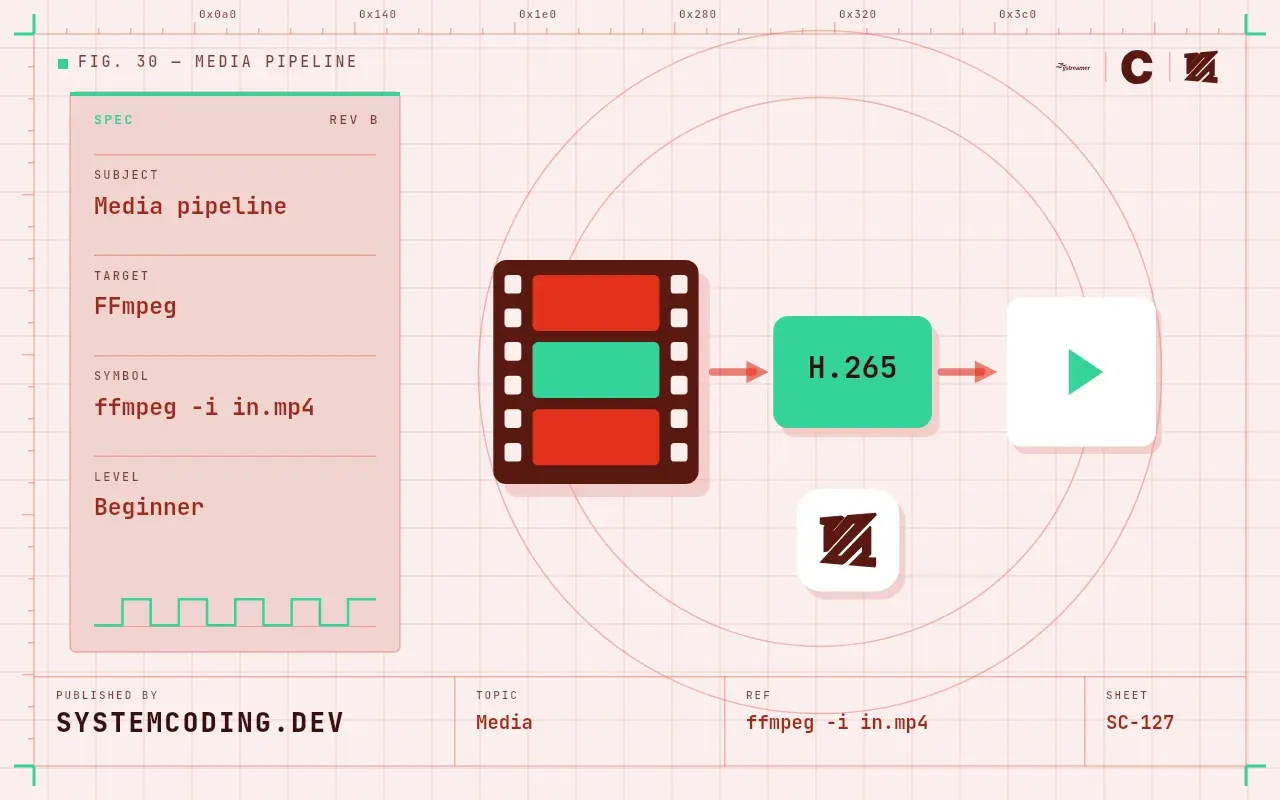
MP4 with H.264 video and AAC audio is the format that plays almost everywhere: phones, browsers, TVs, editing tools and chat apps. When a file will not open on some device, converting it to this combination is usually the fix. This post gives you the one command that does it with FFmpeg 7.1, explains every option so you can change it safely, and covers the three input situations that trip beginners: odd pixel sizes, missing audio, and files that are already H.264.
The command
ffmpeg -i input.mkv -c:v libx264 -crf 23 -preset medium -pix_fmt yuv420p -c:a aac -b:a 128k -movflags +faststart output.mp4Replace input.mkv with any video: .mov, .avi, .webm, .wmv. FFmpeg detects the input format from the file contents, so the extension does not need to match. The output name output.mp4 selects the MP4 muxer.
Here is what each part does:
| Option | Stage | Meaning |
|---|---|---|
-i input.mkv | demuxer | The source file |
-c:v libx264 | encoder | Encode video as H.264 with the x264 library |
-crf 23 | encoder | Constant quality target; lower is better quality and bigger files |
-preset medium | encoder | Speed versus compression trade-off; medium is the default |
-pix_fmt yuv420p | encoder | Pixel layout that every H.264 player supports |
-c:a aac | encoder | Encode audio as AAC with FFmpeg's built-in encoder |
-b:a 128k | encoder | Audio bit rate of 128 kb/s |
-movflags +faststart | muxer | Move the index to the start so web playback begins at once |
If you have not checked that your build has libx264, do that first with ffmpeg -hide_banner -encoders | grep x264.
What FFmpeg prints
During the run, FFmpeg shows the stream mapping and a progress line:
Stream mapping:
  Stream #0:0 -> #0:0 (h264 (native) -> h264 (libx264))
  Stream #0:1 -> #0:1 (aac (native) -> aac (native))
Press [q] to stop, [?] for help
frame= 4032 fps= 96 q=-1.0 Lsize=   38214KiB time=00:02:14.40 bitrate=2329.4kbits/s speed=3.2x
The numbers will differ for your file and machine. q=-1.0 is how x264 reports in CRF mode. speed=3.2x means it encodes 3.2 seconds of video per second of work. If the speed is below 1x, the encode takes longer than the video runs.
Choosing CRF and preset
-crf is the one setting that sets quality. For x264 the scale runs from 0 (lossless) to 51 (worst), the default is 23, and a common range for good results is 18 to 28. Each step of about 6 roughly halves or doubles the file size, as the x264 and FFmpeg H.264 encoding guide describes. A lower number keeps more detail and costs more space.
-preset trades encoding time for compression efficiency at the same CRF. The names, from fastest to slowest, are ultrafast, superfast, veryfast, faster, fast, medium, slow, slower and veryslow. A slower preset gives a smaller file at the same visual quality; it does not change the quality target. Pick the slowest preset you can wait for. The dedicated CRF and preset post in this cluster goes deeper.
Why -pix_fmt yuv420p matters
Many sources, such as screen recordings or camera files, use a different pixel format like yuv444p or yuv422p10le. x264 will happily keep it, and the output then fails to play in browsers, on phones and in QuickTime. Setting -pix_fmt yuv420p converts to the format that every hardware decoder supports for H.264. If your source is already yuv420p, the option does nothing, so it is safe to leave in always.
Odd dimensions: the "not divisible by 2" error
yuv420p stores colour at half resolution, so both width and height must be even. If the source is 1279 pixels wide, x264 stops with:
[libx264 @ 0x55d0c8a3f0c0] width not divisible by 2 (1279x720)The fix is a filter that rounds to an even size while keeping the aspect ratio:
ffmpeg -i input.mkv -vf "scale=trunc(iw/2)*2:trunc(ih/2)*2" -c:v libx264 -crf 23 -pix_fmt yuv420p -c:a aac output.mp4iw and ih are the input width and height. trunc(iw/2)*2 divides by two, drops the fraction, and multiplies back, which yields the nearest even number below. The resize post in this cluster covers other ways to set a target size.
When there is no audio
If the input has no audio stream, the command above still works: FFmpeg simply has nothing to feed the AAC encoder, and the output has only video. You do not need -an to avoid an error. If you want to remove audio on purpose from a file that has it, add -an.
When the video is already H.264
Re-encoding H.264 to H.264 costs time and a little quality. If the input is already H.264 and AAC but in the wrong container, such as MKV, copy the streams instead:
ffmpeg -i input.mkv -c copy -movflags +faststart output.mp4This finishes in seconds because it skips decoding and encoding. It works only when the MP4 container accepts the codecs inside. MP4 holds H.264 and AAC without trouble, but not every codec an MKV can hold, such as certain subtitle formats. Check the stream listing first with ffmpeg -i input.mkv. The remux post in this cluster covers when copy is safe.
Quality check by eye
After a conversion, play the output and look at three things: moving edges for blocking, dark scenes for banding, and the audio for sync. If the picture looks soft, lower the CRF by two and run it again. If the file is too large, raise the CRF by two or use a slower preset. Change one setting per attempt so you know which one did the work. For an objective measure, the VMAF post in this cluster shows how to score an encode.
The same command for a whole folder
On Linux and macOS, a shell loop converts every MKV in a directory, writing each result next to its source:
for f in *.mkv; do
  ffmpeg -n -i "$f" -c:v libx264 -crf 23 -pix_fmt yuv420p -c:a aac -b:a 128k -movflags +faststart "${f%.mkv}.mp4"
done
-n tells FFmpeg never to overwrite an existing output, which protects results from an earlier run. ${f%.mkv} strips the extension from the name. Quote "$f" so names with spaces survive. We once ran this without the quotes on a folder of files named like "Holiday 2019.mkv", and the loop produced a set of failed commands that each complained about a missing "Holiday". The batch post later in this cluster builds a sturdier version.
Choosing the audio bit rate
The -b:a 128k value is a fair default for stereo speech and acceptable music. FFmpeg's native aac encoder produces good results from about 128 kb/s per stereo pair, and raising it to 192k or 256k helps only with demanding music. For mono voice, 64k is plenty. Surround sound needs more: use roughly 64k per channel as a starting point, and use -ac 2 to downmix to stereo when the target is a phone or laptop.
Sample rate follows the source. FFmpeg keeps it, and AAC supports the usual 44,100 Hz and 48,000 Hz. Video files almost always use 48,000 Hz. Leave -ar alone unless a player complains.
If you want to check what you produced, ffprobe reads the result in one line, and it is worth doing the first time you use a new set of options: ffprobe -v error -show_entries stream=codec_name,profile,pix_fmt -of csv=p=0 output.mp4 prints the codec, profile and pixel format for each stream, so you can confirm h264, aac and yuv420p are what ended up in the file.