Encode With Intel Quick Sync Video Using FFmpeg QSV
Encode H.264, HEVC and AV1 on Intel GPUs with FFmpeg 7.1 QSV encoders: libvpl and driver setup, hardware frames, ICQ quality, presets and look-ahead.
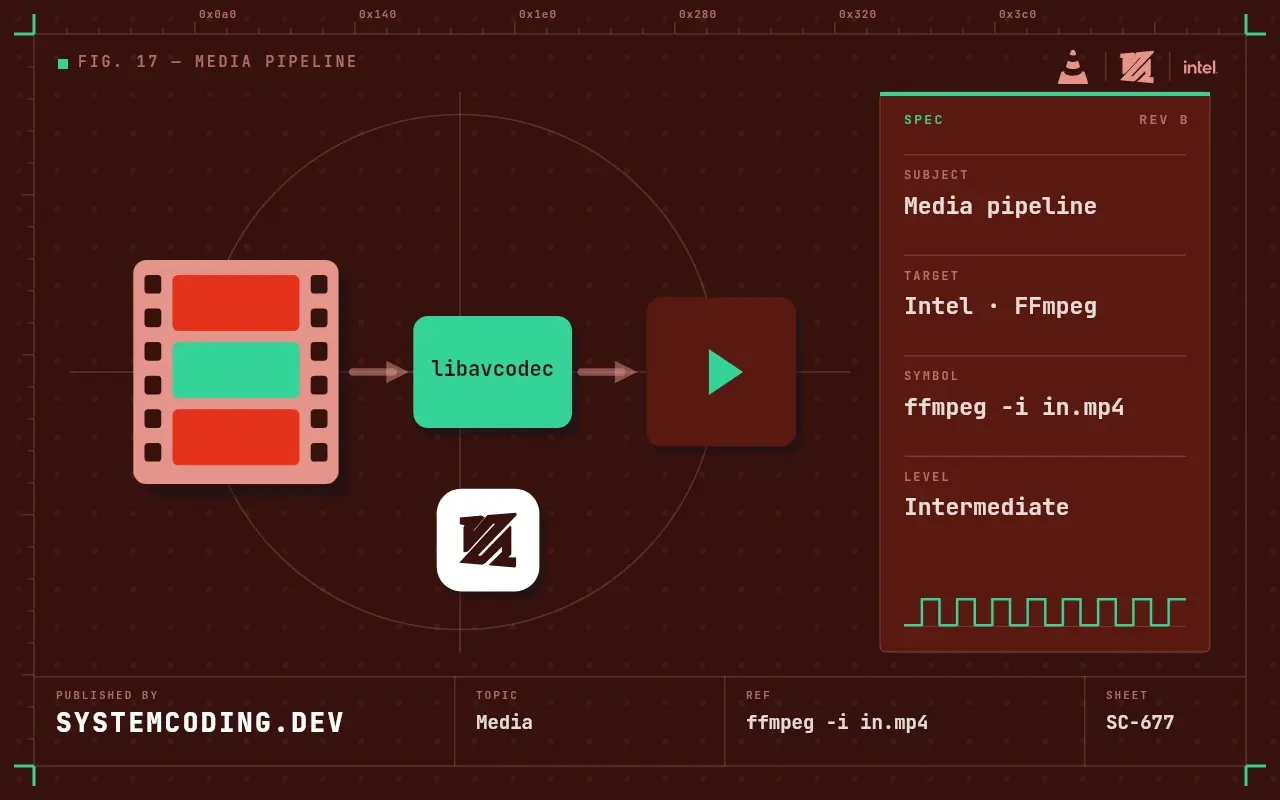
Quick Sync Video is Intel's name for the media engine in its integrated and discrete GPUs. FFmpeg reaches it through the QSV encoders h264_qsv, hevc_qsv, vp9_qsv, mjpeg_qsv and av1_qsv, and through QSV decoders and filters. On Linux the same hardware can also be driven with VAAPI, so a first question is why you would use QSV at all. The answer is options: the QSV encoders expose look-ahead, adaptive B-frame and intelligent constant quality controls that the VAAPI encoders do not. This post covers the software stack that FFmpeg 7.1 expects, a first command, the quality mode that suits most jobs and the way frames move between system and GPU memory.
The stack: libvpl, the media driver and FFmpeg
QSV needs three layers. At the bottom is a GPU driver. On Linux, current Intel GPUs use the intel-media-driver package, the same iHD driver that VAAPI uses. In the middle is the dispatcher library. FFmpeg 7.x talks to the oneVPL API through libvpl, and the older Media SDK (libmfx) path is deprecated, so a current build uses --enable-libvpl. On top sits FFmpeg. Check the build:
ffmpeg -hide_banner -encoders | grep qsv V..... h264_qsv H.264 / AVC / MPEG-4 AVC / MPEG-4 part 10 (Intel Quick Sync Video acceleration) (codec h264)
V..... hevc_qsv HEVC (Intel Quick Sync Video acceleration) (codec hevc)
V..... av1_qsv AV1 (Intel Quick Sync Video acceleration) (codec av1)The list shows which encoders are compiled in, not which the GPU supports. The vainfo tool shows the encode entrypoints that the iHD driver exposes for the same hardware, and a profile that VAAPI cannot encode on your GPU cannot be encoded through QSV either.
Setting up the device
QSV needs a hardware device context. On Linux, give it the VAAPI backend explicitly so that FFmpeg does not guess among several displays:
ffmpeg -init_hw_device qsv=hw:/dev/dri/renderD128 -filter_hw_device hw \
  -i input.mp4 -vf "hwupload=extra_hw_frames=64,format=qsv" \
  -c:v h264_qsv -global_quality 23 -c:a copy out.mp4
The options do this:
-init_hw_device qsv=hw:/dev/dri/renderD128creates a QSV device namedhw, using the render node. On Windows you would writeqsv=hwand let it use Direct3D 11.-filter_hw_device hwtells filters that need a device, herehwupload, to use it.hwupload=extra_hw_frames=64,format=qsvcopies each decoded frame into a QSV surface. Theextra_hw_framesoption reserves spare surfaces in the pool, which prevents a "pool exhausted" failure when the encoder holds frames for look-ahead or B-frame reordering.
The -c:v h264_qsv encoder takes the QSV frames. If you hand it ordinary frames, FFmpeg can upload them itself in some cases, but the explicit upload makes the pipeline's behaviour predictable.
Intelligent constant quality
Most jobs want a quality target, not a bitrate. QSV supports this as ICQ, intelligent constant quality, selected by -global_quality:
ffmpeg -init_hw_device qsv=hw:/dev/dri/renderD128 -filter_hw_device hw \
  -i input.mp4 -vf "hwupload=extra_hw_frames=64,format=qsv" \
  -c:v hevc_qsv -global_quality 25 -preset slow -tag:v hvc1 -c:a copy out-hevc.mp4
-global_quality takes a value from 1 to 51 where lower means higher quality, and the encoder picks the bitrate. -preset accepts veryfast, faster, fast, medium, slow, slower and veryslow, and a slower preset spends more time on each frame for better compression. Add -look_ahead 1 where the encoder supports it to enable LA_ICQ, which looks ahead at upcoming frames to distribute quality better. The cost is latency and extra memory, so it is not for live use.
When you need a bitrate instead, use -b:v with -maxrate for constant bitrate. A bitrate target with -look_ahead 1 gives a look-ahead rate control mode that improves quality at the same bitrate. Check ffmpeg -h encoder=h264_qsv for the options in your build, since their availability depends on the library and the hardware generation.
Full hardware path
If the source decodes on QSV, keep frames in GPU memory from decoder to encoder:
ffmpeg -hwaccel qsv -hwaccel_output_format qsv -i input.mp4 \
  -vf "vpp_qsv=w=1280:h=720" -c:v h264_qsv -global_quality 23 -c:a copy out-720p.mp4
-hwaccel qsv decodes with the media engine, and -hwaccel_output_format qsv leaves the frames on the GPU. vpp_qsv is the video post-processing filter, which scales, converts format and deinterlaces on the GPU. The chain copies nothing across the bus until the stream is written. The stream mapping line in the log confirms the codecs involved:
Stream mapping:
  Stream #0:0 -> #0:0 (h264 (h264_qsv) -> h264 (h264_qsv))
If any filter in the chain runs in software, you must download and re-upload. For a mixed chain, see the later post in this cluster on hwupload and hwdownload.
Pixel formats and 10-bit
QSV surfaces use NV12 for 8-bit 4:2:0 and P010 for 10-bit. Convert before the upload when your source is a different format:
ffmpeg -init_hw_device qsv=hw:/dev/dri/renderD128 -filter_hw_device hw \
  -i hdr.mkv -vf "format=p010le,hwupload=extra_hw_frames=64,format=qsv" \
  -c:v hevc_qsv -profile:v main10 -global_quality 24 out-10bit.mkv
The format=p010le filter before hwupload makes the system-memory frames match the surface format. 4:2:2 and 4:4:4 are supported only on some hardware generations, so verify against vainfo.
Deinterlacing and other post-processing
The vpp_qsv filter does more than scaling. It can deinterlace with deinterlace=advanced, which matters for broadcast captures and DVD sources, and it converts between formats and crops, all on the GPU:
ffmpeg -hwaccel qsv -hwaccel_output_format qsv -i capture.ts \
  -vf "vpp_qsv=deinterlace=advanced:w=1280:h=720:format=nv12" \
  -c:v h264_qsv -global_quality 24 -c:a copy out.mp4
Doing this in software means downloading every frame, running yadif and uploading again, and each of those steps costs memory bandwidth. Keeping it on the GPU is the main practical reason to learn the QSV filters. On Windows the same commands work with -hwaccel d3d11va for decoding and a qsv=hw device with the default Direct3D 11 backend, and the driver comes with Intel's graphics driver package, so there is no separate media driver to install.
The availability of each vpp_qsv option depends on the library version and the hardware, and ffmpeg -h filter=vpp_qsv prints the set for your build.
Comparing QSV with VAAPI and software
| Choice | Strength | Weakness |
|---|---|---|
h264_qsv | ICQ, look-ahead, adaptive options | Needs libvpl and a matching driver |
h264_vaapi | Plain Linux stack, simple | Fewer rate-control features |
libx264 | Best quality per bit | Uses the CPU heavily |
The hardware is the same for QSV and VAAPI on Linux, so speed is similar. The difference is the control surface. If you only need a fixed QP or bitrate, VAAPI has fewer moving parts. If you want ICQ with look-ahead, QSV is the better fit.
Troubleshooting
"Error creating a MFX session: -9". The runtime or driver is missing or mismatched. Check that
libvplfinds an implementation withvainfoand theLIBVA_DRIVER_NAMEenvironment, which should beiHD."Failed to create the encoder: unsupported". The GPU does not support that codec or profile.
"No device available for decoder". Add
-init_hw_devicebefore the input, or use-hwaccel qsvwith an explicit device.**Pool exhausted,
Not enough free surfaces.** Raiseextra_hw_frames, or lower the look-ahead depth.