Encode With NVENC in FFmpeg on NVIDIA GPUs
Encode with h264_nvenc and hevc_nvenc in FFmpeg 7.1 on NVIDIA GPUs: driver needs, a working command, quality settings, session limits and fixes.
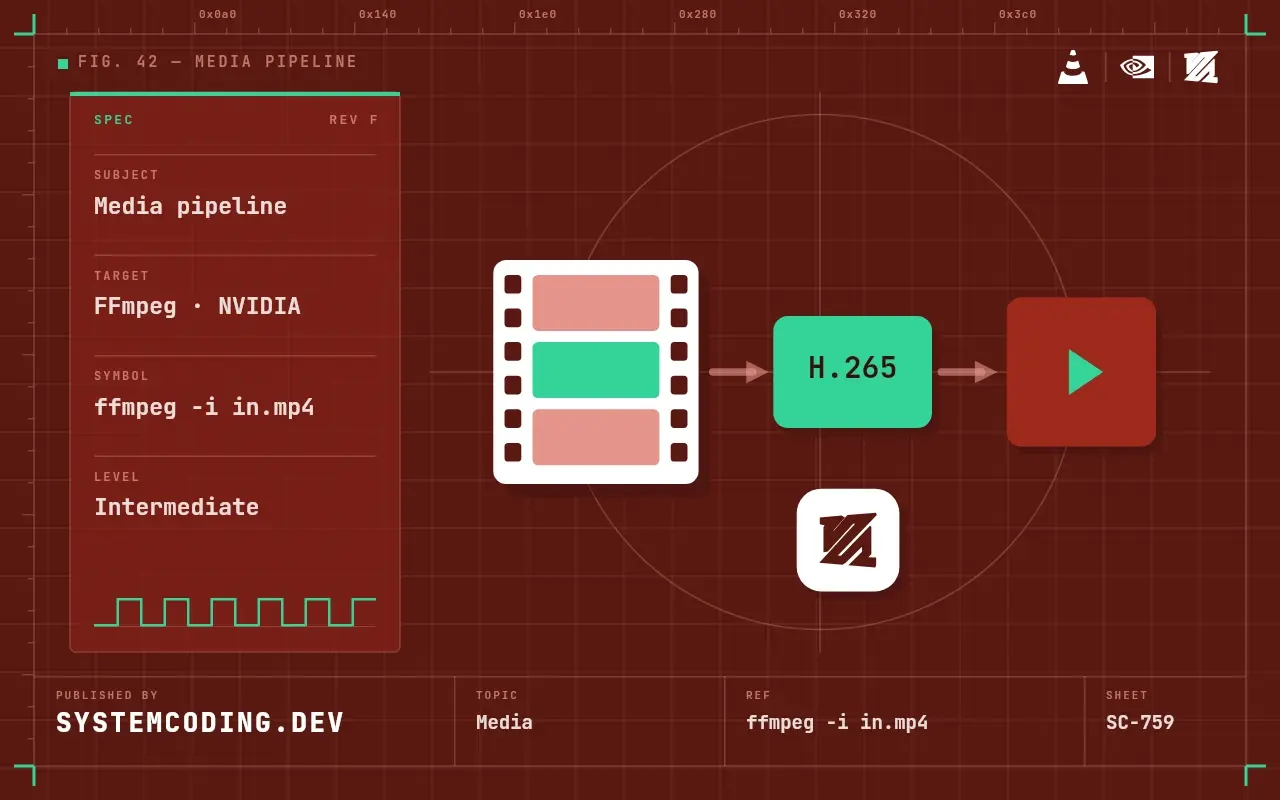
NVENC is the fixed-function video encoder built into NVIDIA GPUs. It runs separately from the CUDA cores, so a card can encode video while it does graphics or compute work at full speed. FFmpeg 7.1 drives it through h264_nvenc and hevc_nvenc, and through av1_nvenc on GPUs from the Ada generation onward. Unlike VAAPI, NVENC accepts ordinary system-memory frames, which makes a first command short. This post covers what your FFmpeg build and your driver must provide, the command that works, the quality options that matter on day one and the limits and errors that show up in real use. The finer rate-control and preset choices are the subject of a separate post on tuning.
What has to be in place
Three things must line up. First, an NVIDIA GPU with an NVENC block. Second, the proprietary NVIDIA driver on the machine that runs FFmpeg, which provides libnvidia-encode.so. Third, an FFmpeg build compiled with NVENC support, which uses the nv-codec-headers package at build time and loads the driver libraries at run time, so the build machine does not need the CUDA toolkit to run it. Check the build:
ffmpeg -hide_banner -encoders | grep nvenc V....D h264_nvenc NVIDIA NVENC H.264 encoder (codec h264)
V....D hevc_nvenc NVIDIA NVENC hevc encoder (codec hevc)
V....D av1_nvenc NVIDIA NVENC av1 encoder (codec av1)Each line only says that the encoder is compiled in. Whether the GPU supports it is decided when you open the encoder. A card without AV1 encode support accepts the av1_nvenc name and fails at initialisation. NVIDIA publishes the encode capabilities of each GPU on its Video Encode and Decode GPU Support Matrix, which is the authoritative list.
Confirm the driver sees the card:
nvidia-smi --query-gpu=name,driver_version --format=csv,noheaderNVIDIA GeForce RTX 4070, 560.35.03The first command
ffmpeg -i input.mp4 -c:v h264_nvenc -preset p5 -rc vbr -cq 23 -b:v 0 -c:a copy out.mp4Read each option:
-preset p5picks a point on the speed and quality scale. Since FFmpeg 4.4 with recent drivers, the presets are namedp1(fastest, lowest quality) top7(slowest, best quality), and the older names such asslowmap to these.-rc vbrselects variable bitrate rate control.-cq 23sets a constant quality level inside VBR mode, a number from 0 to 51 where lower means better quality.-b:v 0removes the bitrate target so that quality alone decides the size. Without it, the encoder also tries to follow the default bitrate and the result is not what-cqalone would give.
This -rc vbr -cq N -b:v 0 combination is the NVENC equivalent of x264's CRF. The numbers are not comparable, so test your own footage. Check the result:
ffprobe -v error -select_streams v -show_entries stream=codec_name,profile,bit_rate -of default=nw=1 out.mp4codec_name=h264
profile=High
bit_rate=5130427The bitrate depends entirely on the picture. The figure above only shows the format of the output.
HEVC and AV1
HEVC follows the same pattern. Add the tag for Apple compatibility:
ffmpeg -i input.mp4 -c:v hevc_nvenc -preset p5 -rc vbr -cq 26 -b:v 0 -tag:v hvc1 -c:a copy out-hevc.mp4For AV1 on a supported GPU, the same options apply with a different encoder:
ffmpeg -i input.mp4 -c:v av1_nvenc -preset p5 -rc vbr -cq 30 -b:v 0 -c:a copy out-av1.mp4On a card without AV1 encode, the log reports that the codec is not supported:
[av1_nvenc @ 0x5631d5a3e8c0] Codec not supported
[av1_nvenc @ 0x5631d5a3e8c0] No capable devices found
When you see "No capable devices found", the answer is in the support matrix, not in the command.
Pixel formats and 10-bit
NVENC takes several input formats and converts internally. For 8-bit H.264 and HEVC, yuv420p and nv12 work directly. For 10-bit HEVC, give it 10-bit input and select the profile:
ffmpeg -i hdr10.mkv -c:v hevc_nvenc -profile:v main10 -pix_fmt p010le -preset p5 -rc vbr -cq 24 -b:v 0 out-10bit.mkvp010le is the 10-bit layout with interleaved chroma. H.264 encoding in NVENC is limited to 8-bit on most generations, so a 10-bit source for H.264 would need to be converted down, which is a quality decision rather than a technical detail.
Session limits
Consumer GeForce drivers historically limit the number of simultaneous encode sessions, and the limit has changed between driver releases and is documented by NVIDIA on its NVENC support page. When you exceed it, FFmpeg fails to open the encoder:
[h264_nvenc @ 0x55f0a2c4d3c0] OpenEncodeSessionEx failed: out of memory (10): (no details)The "out of memory" text is the misleading part: it means no more sessions are allowed, not that the card has no memory left. Run fewer parallel jobs, or use a GPU class with a higher or no limit. Each session also uses video memory, and that resource limit is separate and does produce real out of memory errors on small cards.
Decode on the GPU as well
Add CUDA decoding for heavy sources. By default, FFmpeg downloads decoded frames to system memory, and NVENC uploads them again, which is simple and correct:
ffmpeg -hwaccel cuda -i input.mp4 -c:v h264_nvenc -preset p5 -rc vbr -cq 23 -b:v 0 out.mp4To avoid both copies, keep frames on the GPU with -hwaccel_output_format cuda and use GPU filters such as scale_cuda. That setup is covered in a later post in this cluster. Use it when 4K or many parallel streams make the copies the bottleneck.
Choosing a GPU and running parallel jobs
On a machine with several NVIDIA GPUs, the -gpu encoder option picks which one encodes, counting from zero:
ffmpeg -i in.mp4 -c:v h264_nvenc -gpu 1 -preset p5 -rc vbr -cq 23 -b:v 0 out.mp4Without it FFmpeg uses the first GPU, so running four jobs with no -gpu option puts all four on one card while another idles. Assign jobs round-robin in your script, and watch the sessions with nvidia-smi encodersessions. The index order of nvidia-smi and the order the encoder uses can differ when CUDA_DEVICE_ORDER is not set to PCI_BUS_ID, so set that variable before you trust the numbers.
Parallel jobs are where NVENC pays off. The encoder block works independently of the CPU, so a transcode farm built around a few GPUs can keep many streams going at once with a modest CPU. The limits you meet first are the session cap on consumer cards and the video memory each session holds.
Where NVENC falls short
NVENC is fast and uses almost no CPU, but at the same bitrate it produces a lower quality than a slow x264 or x265 preset, and the gap is larger for H.264 than for recent GPU generations' HEVC and AV1. Its quality depends on the GPU generation: the encoder in Turing and later is a clear step up from earlier ones. For archives, use software. For streaming, game capture and mass transcoding, NVENC is the standard tool, since the encode costs the CPU almost nothing and runs in real time at 4K on a current card.
Troubleshooting
"Cannot load libnvidia-encode.so.1". The driver is missing, or you are inside a container without the NVIDIA runtime.
"Driver does not support the required nvenc API version". The driver is older than the
nv-codec-headersused to build FFmpeg. Update the driver or use an older build."unsupported device (2)". The GPU lacks the requested codec or feature. Check the support matrix.
Banding in dark scenes. Turn on adaptive quantisation with
-spatial-aq 1, covered in the tuning post.