The Complete Guide to Video and Audio Codecs and Containers
Understand codecs and containers from raw pixels to files: compression, frame types, H.264, H.265, VP9, AV1, AAC, Opus, MP4, MKV, WebM, streaming and ffmpeg.
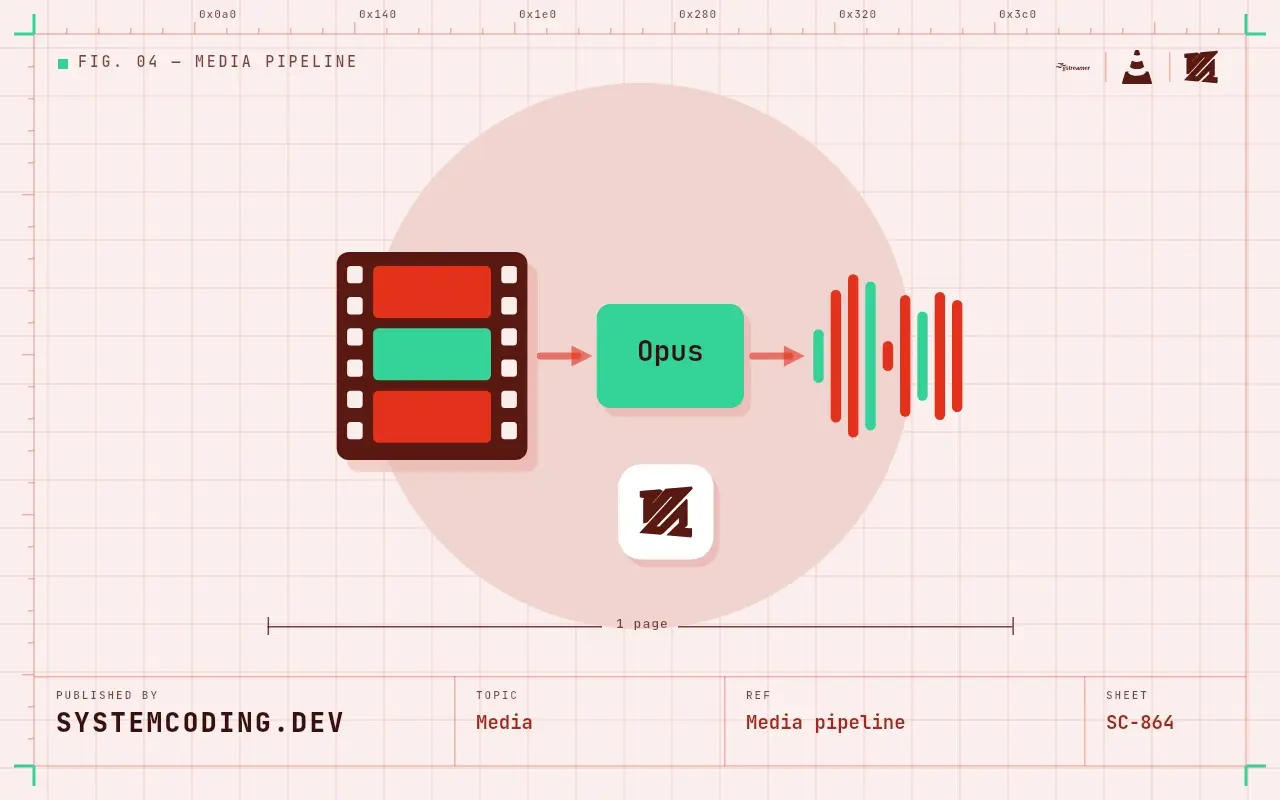
Every video you have ever watched on a screen is the end of a long chain of compromises. A camera captured far more data than any network could carry, an encoder threw most of it away in a way your eyes would not notice, a container file packed the result together with sound, subtitles and an index, and a player undid all of it in real time. The names in that chain, H.264, AAC, MP4, MKV, Opus, AV1, HLS, show up in every settings dialog and every error message, and most people treat them as magic words. This guide takes them apart. It starts from the size of raw video, explains the ideas that make compression work, describes the major video and audio codecs and the containers that carry them, shows how to look inside a real file with FFmpeg and with a few lines of C, and ends with the decisions you actually make: how to convert, how to deliver to the web, how to archive and how to fix the file that will not play. The commands use FFmpeg 7.1, and the specifications cited are the ITU-T and ISO standards and the IETF RFCs for the formats discussed.
Why compression exists: the size of raw video
Start with the numbers, because they explain everything else. A single high-definition frame is 1920 pixels wide and 1080 high. In the common 4:2:0 format, each pixel has one 8-bit brightness sample, and each 2 by 2 block of pixels shares one pair of colour samples, so a frame needs on average 12 bits, or 1.5 bytes, per pixel. A short program makes the arithmetic concrete.
#include <stdio.h>

int main(void)
{
    const double w = 1920, h = 1080, fps = 30;
    double bytes_per_frame = w * h * 1.5;            /* 8-bit 4:2:0 */
    double bytes_per_second = bytes_per_frame * fps;
    double bits_per_second = bytes_per_second * 8;

    printf("frame:  %.0f bytes\n", bytes_per_frame);
    printf("second: %.1f MB\n", bytes_per_second / 1e6);
    printf("rate:   %.0f Mbit/s\n", bits_per_second / 1e6);
    printf("hour:   %.0f GB\n", bytes_per_second * 3600 / 1e9);
    return 0;
}frame: 3110400 bytes
second: 93.3 MB
rate: 746 Mbit/s
hour: 336 GBAn hour of uncompressed 1080p30 video is about 336 gigabytes, and a stream of 746 megabits per second is far beyond a home connection and, for that matter, beyond a fast disk's comfortable sustained rate in a phone. Real video at that size is delivered at a few megabits per second, which is a reduction by a factor of well over a hundred. That reduction is the job of a codec. A codec (coder-decoder) is an algorithm, and usually a standard, for turning raw frames or samples into a much smaller stream of bytes and back again. The first half of this guide is about how that works and which codecs exist; the second half is about containers, the files and streams that hold the compressed data.
The ideas behind video compression
Four ideas, applied together, do almost all of the work. Knowing them lets you predict what an encoder will do well and what it will struggle with.
Remove what the eye does not see
Human vision is far more sensitive to brightness than to colour. Video therefore does not store red, green and blue. It stores luma (brightness, called Y) and two chroma components (colour difference, called Cb and Cr), and then stores the chroma at lower resolution. This is chroma subsampling, written as three numbers. In 4:4:4, chroma has the full resolution. In 4:2:2, chroma has half the horizontal resolution, and in 4:2:0, half the horizontal and half the vertical resolution, which is the format of nearly all consumer video. Going from 4:4:4 to 4:2:0 halves the data before any real compression starts, and the loss is hard to see in natural pictures. It matters in screen content: thin red text on a blue background can look fringed in 4:2:0, which is one reason screen recorders and professional workflows keep 4:2:2 or 4:4:4.
Exploit similarity inside a picture
Neighbouring pixels in a picture are usually similar: a sky, a wall, a face. Instead of storing every pixel, a codec predicts a block from its already-coded neighbours and stores only the difference. It then applies a mathematical transform, a variant of the discrete cosine transform, to the difference block. The transform turns a block of pixel differences into a block of frequency coefficients, where most of the energy sits in a few low-frequency values and the rest are small or zero. Smooth areas need very few coefficients, and detailed textures need many.
Exploit similarity between pictures
Consecutive frames of a video are even more similar than neighbouring pixels. A talking head in front of a static wall changes in a small area from frame to frame. So the codec predicts a block of a new frame from a block of an earlier frame, displaced by a motion vector that follows the movement, and again stores only the difference. This is inter prediction, and it is where most of the saving in video comes from. It also creates dependencies between frames, which leads to the three frame types in the next section.
Throw away precision, then pack the rest
The only step that loses information on purpose is quantisation: dividing each transform coefficient by a step size and rounding. Small coefficients become zero, and large ones lose their lowest digits. A bigger step size means fewer bits and more visible damage. What remains is a stream of small integers with many zeros, and the last stage, entropy coding, writes it in as few bits as possible with variable-length codes or arithmetic coding, which assign short codes to common values.
The encoder is free to choose how much to quantise, and the control that exposes this is the rate control. In constant bitrate (CBR) mode, the encoder adjusts quantisation so the output stays near a target number of bits per second, which suits live streams with a fixed link. In variable bitrate (VBR) it spends more bits on difficult scenes and fewer on easy ones. In constant quality mode, called CRF in x264 and x265, you choose a quality level and the bitrate follows the content. For files that are stored and watched later, constant quality gives the best use of the bits.
Frame types and the group of pictures
Because inter prediction makes frames depend on one another, codecs use three kinds of coded picture. An I-frame (intra) is coded on its own and can be decoded without any other frame. A P-frame (predicted) refers to earlier frames. A B-frame (bi-predicted) can refer to frames both before and after it in display order, which means the stream is stored in a different order than it is shown, with the future reference coming first. A group of pictures (GOP) is the run from one I-frame to the next.
The I-frame is the entry point: a player that seeks, or a viewer who joins a live stream, must start at one. A longer GOP compresses better, since I-frames are the largest, and it makes seeking coarser, delays a late joiner's first picture and makes errors last longer. Typical settings use a keyframe every two seconds for on-demand video and shorter for live streams. B-frames improve compression and add delay, so low-latency video such as calls turns them off. You can see the pattern in a real file:
ffprobe -v error -select_streams v:0 -show_entries frame=pict_type -of csv=p=0 -read_intervals "%+#24" input.mp4 | tr '\n' ' 'I P B B P B B P B B P B B P B B P B B P B B P B The letters are the picture types in stored order for one example file, and the repetition shows a GOP pattern with two B-frames between each pair of references. Because stored order differs from display order, every frame carries two timestamps, a decode time stamp (DTS) and a presentation time stamp (PTS), and containers record both.
The video codecs you will meet
A video codec is defined by a standard, and an encoder is a program that produces conforming streams. The standard fixes the decoder, so any conforming decoder plays any conforming stream, and encoders compete on quality for the bits they spend.
H.264, also called AVC (ITU-T H.264, ISO/IEC 14496-10, 2003), is the most widely deployed codec. It divides pictures into 16 by 16 macroblocks, predicts them from neighbours or earlier frames with quarter-sample motion vectors, transforms with a 4x4 or 8x8 integer transform, quantises and entropy codes with CAVLC or CABAC. Every phone, browser, television and set-top box decodes it in hardware. The usual software encoder is x264. It is the safe default for compatibility.
H.265, also called HEVC (ITU-T H.265, ISO/IEC 23008-2, 2013), keeps the same overall design with larger, more flexible blocks (coding tree units up to 64 by 64), more prediction modes and better entropy coding. It compresses better than H.264 at the same quality, and it is common in hardware, but its patents are spread across several licensing pools, so browser support is uneven. The usual encoder is x265.
VP9 is Google's royalty-free codec, supported by major browsers and many devices, usually in the WebM container, with libvpx as the reference encoder. AV1 is the codec of the Alliance for Open Media, designed to be royalty-free and to compress better than VP9 and H.265. It is supported in current browsers and in the hardware of newer devices, decodes in software on others at a CPU cost, and has the slowest encoders of the four; SVT-AV1 and libaom are common ones. VP8 and MPEG-4 Part 2 are older codecs you meet in legacy files, and MPEG-2 is the codec of DVDs and broadcast.
Intermediate and production codecs such as Apple ProRes, Avid DNxHD and DNxHR and the intra-only modes of H.264 use only I-frames or mild compression at high bitrates, so each frame decodes alone, editing is fast and quality survives repeated generations. They give large files and are used between cameras, editors and finishing, not for delivery. Lossless codecs such as FFV1 reproduce the input exactly and are used for archiving.
A profile says which tools of a codec a stream uses, and a level says how big and fast it may be. H.264's Baseline, Main and High profiles and its numbered levels decide which devices can decode a stream. A compatible web video is usually High profile, level 4.0 or 4.1, with 8-bit 4:2:0 chroma. A stream in an exotic profile, such as 10-bit or 4:4:4, may play in a desktop player and fail in a browser or on a phone.
Audio: from samples to codecs
Sound is stored as samples: measurements of air pressure taken at a fixed sample rate, each with a bit depth, per channel. CD audio is 44100 samples per second, 16 bits and two channels, which is 1.411 megabits per second. Video uses 48000 samples per second by convention. Uncompressed audio in this form is called PCM, and it is stored in WAV or AIFF files.
Audio codecs follow two strategies. Lossless codecs, such as FLAC and ALAC, compress PCM to a fraction of its size without any loss and decode to the identical samples. Lossy codecs use a psychoacoustic model: they transform the signal into frequency bands and discard components that human hearing masks, a quiet tone next to a loud one, frequencies near the limit of hearing, and they spend bits where the ear is sensitive.
MP3 (MPEG-1 Audio Layer III) is the codec that started portable music. It is simple, universally decoded and surpassed in efficiency. AAC (Advanced Audio Coding, in MPEG-4 Part 3) is its successor and the default audio of MP4 files, streaming services and Apple devices. The common profile is AAC-LC, with HE-AAC extending quality at low bitrates. Opus (IETF RFC 6716) is an open codec that covers speech and music, from a few kilobits per second to hundreds, with frame sizes down to 2.5 milliseconds, which makes it the default in real-time communication and WebM. Vorbis is an older open codec that Opus replaced for new work. AC-3 and E-AC-3 (Dolby Digital) and DTS are the surround codecs of discs and broadcast.
Choose by the use. For a compatible video file, AAC-LC at 128 to 192 kilobits per second stereo. For calls and low-latency audio, Opus. For archives and masters, FLAC. For web delivery in WebM, Opus. A dedicated post compares AAC and Opus in depth.
Containers: the files around the streams
A container is a file or stream format that holds one or more compressed streams, such as video, several audio tracks and subtitles, together with the information needed to play them: which codec each stream uses, the timestamps that keep them aligned and an index for seeking. The container does not compress anything. It does decide which codecs can be stored, which features exist and how well a player can start playing before the whole file has arrived.
MP4 (ISO/IEC 14496-14, built on the ISO base media file format) is a tree of boxes, each with a size and a four-character type. The index lives in the moov box and the compressed data in mdat. It carries H.264, H.265, AV1, AAC and others, is supported by practically every device and is the standard container for the web and for streaming. MOV is Apple's QuickTime format, from which MP4 descends. MKV, Matroska, is an open container based on EBML that holds nearly any codec, any number of tracks, chapters and attachments; it is the favourite for archives. WebM is a restricted profile of Matroska for the web, limited to VP8, VP9 and AV1 video with Vorbis and Opus audio. MPEG-TS (transport stream) is built for broadcast and unreliable links, with small fixed-size packets that let a receiver join in the middle, and it is the original segment format of HLS. AVI is an old Microsoft format with limits that modern codecs strain. Ogg carries Vorbis, Opus and FLAC. MXF is the professional broadcast container.
Plain audio files are often a bare stream: an .mp3 file is a sequence of MP3 frames with an optional tag, and a .flac file has its own framing, so for audio the lines between codec and container blur.
The practical rule is that a file needs two things to play: a device that understands the container, and a decoder for every codec inside. The file extension names the container, not the codecs.
Look inside a real file with FFmpeg
ffprobe, which ships with FFmpeg, is the tool for the job. The default output lists the container and each stream:
ffprobe -hide_banner holiday.mp4Input #0, mov,mp4,m4a,3gp,3g2,mj2, from 'holiday.mp4':
Metadata:
major_brand : isom
minor_version : 512
compatible_brands: isomiso2avc1mp41
Duration: 00:03:12.48, start: 0.000000, bitrate: 4338 kb/s
Stream #0:0[0x1](und): Video: h264 (High) (avc1 / 0x31637661), yuv420p(progressive), 1920x1080, 4210 kb/s, 30 fps, 30 tbr, 15360 tbn (default)
Stream #0:1[0x2](und): Audio: aac (LC) (mp4a / 0x6134706D), 48000 Hz, stereo, fltp, 128 kb/s (default)Read it as the container (MP4, the mov,mp4,m4a,... demuxer family), then two streams: video compressed with H.264 High profile in 4:2:0 at 1920x1080, and audio compressed with AAC-LC at 48 kHz stereo. The numbers differ for each file. For scripts, ask for JSON:
ffprobe -v error -print_format json -show_format -show_streams holiday.mp4You can do the same from C with libavformat, which is how players and tools read files. This program opens a file and prints the container and each stream's codec.
#include <libavformat/avformat.h>
#include <libavutil/channel_layout.h>
#include <stdio.h>

int main(int argc, char *argv[])
{
    if (argc < 2) { fprintf(stderr, "usage: %s file\n", argv[0]); return 2; }

    AVFormatContext *ic = NULL;
    if (avformat_open_input(&ic, argv[1], NULL, NULL) < 0) {
        fprintf(stderr, "cannot open %s\n", argv[1]);
        return 1;
    }
    if (avformat_find_stream_info(ic, NULL) < 0) {
        avformat_close_input(&ic);
        return 1;
    }

    printf("container: %s\n", ic->iformat->name);
    printf("duration:  %.2f s\n", ic->duration / (double)AV_TIME_BASE);

    for (unsigned i = 0; i < ic->nb_streams; i++) {
        const AVCodecParameters *p = ic->streams[i]->codecpar;
        printf("stream %u: %s", i, avcodec_get_name(p->codec_id));
        if (p->codec_type == AVMEDIA_TYPE_VIDEO)
            printf(" video %dx%d\n", p->width, p->height);
        else if (p->codec_type == AVMEDIA_TYPE_AUDIO)
            printf(" audio %d Hz, %d channels\n", p->sample_rate, p->ch_layout.nb_channels);
        else
            printf(" other\n");
    }

    avformat_close_input(&ic);
    return 0;
}
Compile with gcc probe.c -o probe $(pkg-config --cflags --libs libavformat libavutil libavcodec). On the file above it prints:
container: mov,mp4,m4a,3gp,3g2,mj2
duration:  192.48 s
stream 0: h264 video 1920x1080
stream 1: aac audio 48000 Hz, 2 channels
The program shows the structure that every media library exposes: a format context for the container, an array of streams, and per-stream codec parameters that describe the codec without decoding anything. ch_layout.nb_channels is the channel count in FFmpeg 5.1 and later, and older code uses the channels field.
Remuxing and transcoding
Two operations cover nearly all conversions, and confusing them is the root of most wasted time. Remuxing copies the compressed streams into a different container without touching them: fast, lossless and limited by what the new container accepts.
ffmpeg -i input.mkv -c copy output.mp4-c copy means copy every stream. The command finishes in the time it takes to read and write the file, and the picture and sound are bit-identical. The stream mapping in the output states (copy) for each stream. Transcoding decodes the streams and encodes them again, which changes the codec or its settings. It is slow, it loses a little quality on every generation and it is necessary when the target does not support the codec.
ffmpeg -i input.mkv -c:v libx264 -crf 20 -preset medium -c:a aac -b:a 160k output.mp4The decision rule: if the codecs are acceptable to the destination, remux; if only one stream is a problem, transcode that stream and copy the other (-c:v copy -c:a aac); if both are, transcode both. Always ask first with ffprobe what is inside, because a conversion that did not need re-encoding is a conversion that lost quality for nothing.
Containers have rules, and FFmpeg enforces them. Copying H.264 video into WebM fails with a message that WebM supports only VP8, VP9, AV1, Vorbis, Opus and WebVTT. The fix is to re-encode to codecs WebM allows. Copying PGS or other image subtitles into MP4 fails or drops them, since MP4 carries text subtitles in its own simple format.
Quality, bitrate and the settings that matter
Three settings decide the result of an encode: the codec, the quality target and the encoder speed. The quality target is a CRF value for constant-quality encoding or a bitrate for a target size, and each codec has its own scale: x264 uses CRF 18 to 28 across the useful range, with lower being better and larger files; x265 and AV1 encoders use different ranges, and numbers cannot be compared between codecs. The preset trades encoding time for compression efficiency: slower presets find better predictions and give smaller files at the same quality, within the same codec.
ffmpeg -i master.mov -c:v libx264 -preset slow -crf 20 -pix_fmt yuv420p -c:a aac -b:a 160k -movflags +faststart out.mp4This is a sound default for an H.264 deliverable. -pix_fmt yuv420p forces 8-bit 4:2:0 so that the stream is decodable everywhere, -movflags +faststart moves the MP4 index to the front for web playback, and the audio is AAC-LC at 160 kilobits per second. If you must hit a size, use two-pass encoding with a target bitrate. If you want the best quality per byte for stored files, use CRF. And to judge quality, measure: compare the encode with the source using a full-reference metric such as VMAF or SSIM, or watch both at the viewing size, since artefacts depend on content and screen.
Never encode repeatedly. Each lossy generation adds damage, so keep the master and produce each deliverable from it.
Hardware encoding and decoding
Dedicated hardware blocks in GPUs and system-on-chips decode and encode the common codecs at low power. Decoding is almost always worth using: H.264 decodes in hardware on every device, and a hardware decoder is why a phone plays video for hours. Encoding in hardware is fast and a little less efficient than the best software encoders at the same bitrate, so it suits live streaming and screen recording, and software encoders suit final deliverables where size matters. FFmpeg reaches hardware through VAAPI on Linux, NVENC and NVDEC on NVIDIA, VideoToolbox on Apple and Media Foundation on Windows. A newer codec is only attractive for delivery when the viewer's device decodes it in hardware.
Streaming: why files are cut into pieces
A normal MP4 is one file with one index, which must be complete before it can be written, and it does not adapt to a viewer's changing bandwidth. Streaming systems fix both by cutting the video into short segments, each starting with a keyframe, and encoding several renditions at different resolutions and bitrates. The two main protocols are HLS (HTTP Live Streaming, from Apple) and MPEG-DASH. A manifest file lists the renditions and their segments, and the player downloads segments over plain HTTP, switching to a higher or lower rendition as its measured bandwidth changes. Segments are either MPEG-TS pieces or fragmented MP4, in which a small initial moov is followed by repeated moof and mdat pairs, so that each fragment carries its own index. CMAF standardises fragmented MP4 so that one set of segments serves both HLS and DASH.
ffmpeg -i input.mp4 -c:v libx264 -g 48 -keyint_min 48 -sc_threshold 0 -c:a aac -f hls -hls_time 4 -hls_playlist_type vod -hls_segment_filename "seg_%03d.ts" playlist.m3u8The key detail is the fixed keyframe spacing (-g 48 with -sc_threshold 0 disabling extra scene-cut keyframes), so that segments start on keyframes: at 24 fps, 48 frames is two seconds, so each four-second segment begins with one. Match -g to your frame rate and segment length. For low-latency live streaming the segments become much shorter pieces of a fragmented MP4, and the protocol extensions (LL-HLS, low-latency DASH) are designed around them.
Choosing for web delivery
For a general audience, the safe baseline is an MP4 with H.264 High profile at level 4.0 or 4.1 in yuv420p, with AAC-LC audio and the index at the front. To save bandwidth for viewers whose devices support a newer codec, add VP9 in WebM or AV1 in MP4 as better alternatives and let the browser pick the first it can play, in order from most efficient to most compatible. Use the browser's canPlayType and the Media Capabilities API to check that decoding is both supported and power-efficient before sending a newer codec. The codec string in HTML, such as avc1.640028, encodes the profile and level: 64 is High, 00 is the constraint byte and 28 is level 4.0.
<video controls playsinline width="960">
  <source src="clip-av1.mp4" type='video/mp4; codecs="av01.0.08M.08, opus"'>
  <source src="clip-h264.mp4" type='video/mp4; codecs="avc1.640028, mp4a.40.2"'>
</video>
Choosing for archives and editing
For long-term storage, keep the highest-quality master you have. A camera original or a lossless or intra-frame intermediate (ProRes, DNxHR, FFV1) in MKV or MOV is a master; an H.264 file made from it is a derivative. For a library of finished films and shows, remux disc rips into MKV with -map 0 -c copy, which keeps every audio track, subtitle and chapter, and let your media server transcode on demand for devices that cannot play them. For editing, use the codec your editor handles smoothly, usually an intra-frame intermediate, because long-GOP H.264 is slow to scrub and decode repeatedly.
Timestamps, frame rates and why sync breaks
A container does not store "frames per second"; it stores a timestamp for every sample, in units of a time base (a fraction of a second, such as 1/90000 for MPEG-TS or 1/15360 in an MP4 track). The frame rate is derived from the spacing. This explains several common problems. A variable frame rate (VFR) file, typical of phone recordings and screen captures, has uneven spacing, and an editor that assumes constant frame rate shows audio drifting out of sync; converting to constant frame rate with -vf fps=30 or -fps_mode cfr fixes it. Audio and video start times can differ by a few tens of milliseconds because the container records an offset, and a tool that ignores the offset shifts one track. And B-frame delay gives negative decode timestamps at the start of a file, which MP4 records in an edit list, and which a careless cut can lose.
Cutting a file shows the keyframe constraint. Without re-encoding, a cut can only start at a keyframe, because the frames after it depend on it. FFmpeg's -ss before -i seeks to the keyframe at or before the time and with -c copy starts there; to cut at an exact frame, re-encode at least the part up to the next keyframe.
ffmpeg -ss 00:01:30 -i input.mp4 -t 00:00:20 -c copy clip.mp4The clip begins at the keyframe nearest before 1:30, so it may start a fraction of a second early.
Troubleshooting a file that will not play
Work from the outside in, with ffprobe as the instrument. First, does the file open at all? If ffprobe reports "moov atom not found", an MP4 was cut off before its index was written, and a recovery tool or a fragmented recording format is the remedy for next time. Second, what are the codecs? Compare them with the device. A video track in H.265, AV1, a 10-bit profile or a 4:4:4 format is the usual reason an older device refuses a file, and an audio track in a surround codec such as DTS is the reason for silence. Third, check the container: some devices accept MP4 and not MKV, or the reverse. Fourth, check the profile and level against the device's limits: a High profile at level 5.1 may exceed an older phone.
The fixes follow the cause. If the codecs are fine and only the container is rejected, remux. If one stream is unsupported, transcode only that stream. If the device wants a lower profile or level, re-encode with -profile:v high -level:v 4.1 -pix_fmt yuv420p. If the picture shows corruption that clears at keyframes, packets were lost, and the source needs repair or re-download. If audio drifts, suspect variable frame rate or a start-time offset.
Common mistakes
Calling the container the codec: "convert to MP4" does not say whether to re-encode. Re-encoding when a remux would do, losing quality for nothing. Forgetting -pix_fmt yuv420p, so that a 4:4:4 or 10-bit source produces a file that only desktop players handle. Using -c copy into a container that rejects the codec. Judging quality from bitrate alone, when content decides how much bitrate looks good. Forgetting +faststart on web files. Setting a long GOP and then wondering why seeking is slow. Encoding in a hurry with the fastest preset for a deliverable that will be watched a million times. Mixing up the CRF scale of one encoder with another's.
A reference of the formats
| Name | Kind | Typical use |
|---|---|---|
| H.264 / AVC | video codec | universal delivery |
| H.265 / HEVC | video codec | 4K and HDR, Apple devices, broadcast |
| VP9 | video codec | web, royalty-free |
| AV1 | video codec | web and streaming, best compression |
| ProRes, DNxHR | video codec | editing and production |
| FFV1 | video codec | lossless archive |
| AAC | audio codec | MP4, HLS, music and video |
| Opus | audio codec | calls, WebM, low bitrates |
| MP3 | audio codec | legacy music |
| FLAC | audio codec | lossless music and masters |
| MP4 | container | web, phones, streaming |
| MKV | container | archives, many tracks |
| WebM | container | royalty-free web |
| MPEG-TS | container | broadcast, HLS segments |
| Ogg | container | Vorbis, Opus, FLAC |
A learning path
If this guide is your starting point, learn the subject in this order and try each step on a file of your own. Run ffprobe on five files from different sources, and write down the container and the codecs of each. Remux one file between MP4 and MKV with -c copy and compare the sizes. Transcode a clip at three CRF values and compare quality and size. Print the picture types of a file and find its GOP length. Read an MP4's box structure. Produce an H.264 file with an explicit profile and level, and one with AV1, and compare the encode times. Build a two-rendition HLS playlist. Then read how H.264 actually encodes video, the NAL unit and bitstream formats, and the structure of fragmented MP4. The companion posts in this series cover each of these, and the commands here will let you check every claim against your own files.
Colour: matrices, range and HDR
Pixel values mean nothing without a colour space definition, and the metadata that carries it is a frequent reason for pictures that look washed out or too saturated. Three properties are involved. The primaries define which red, green and blue the format uses: BT.709 for HD video, BT.601 for standard definition and BT.2020 for ultra-high definition and HDR. The matrix is the arithmetic that converts between RGB and the luma and chroma components, and it must match the primaries or colours shift. The range says how much of the 8-bit scale is used: limited (TV) range puts black at 16 and white at 235, which is the video standard, and full (PC) range uses 0 to 255.
A player that assumes the wrong range shows blacks as grey (limited treated as full) or crushes shadows and clips highlights (full treated as limited). The fix is to tag streams correctly when you encode:
ffmpeg -i input.mov -c:v libx264 -crf 20 -pix_fmt yuv420p -colorspace bt709 -color_primaries bt709 -color_trc bt709 -color_range tv out.mp4The four options write the tags into the stream so that decoders do not have to guess. If an input is untagged HD video, the safe assumption for players is BT.709 limited range, and tagging it explicitly removes the guesswork. When converting between RGB sources such as screen captures and YUV video, let FFmpeg's scale filter do the conversion with the correct matrix, for example -vf scale=out_color_matrix=bt709.
HDR adds a different transfer function, which maps stored values to light output. HDR10 uses the PQ curve (SMPTE ST 2084) with BT.2020 primaries, 10-bit samples and static metadata about the mastering display; HLG (Hybrid Log-Gamma) is designed for broadcast and degrades gracefully on screens without HDR support. HDR needs 10-bit encoding, so the profile becomes High 10 in H.264 or Main 10 in H.265, and an HDR stream shown by a player that ignores the metadata looks flat and grey. Converting HDR to SDR needs tone mapping, a processing step with choices of its own, and is not a matter of changing the container.
Interlacing
Older broadcast and some camera formats store each frame as two fields, one with the odd lines and one with the even lines, captured a fraction of a second apart. Played as is on a modern progressive screen, moving objects show comb-like edges. The cure is deinterlacing, which combines or interpolates the fields into full frames:
ffmpeg -i interlaced.ts -vf yadif=mode=send_frame -c:v libx264 -crf 20 progressive.mp4yadif is a common deinterlacer, and mode=send_frame outputs one frame per input frame, while send_field doubles the rate to keep the smooth motion of 50 or 60 fields per second. Check whether a file is interlaced before processing it: ffprobe reports field_order for the video stream, and the idet filter measures it. Encoding interlaced material as progressive without deinterlacing bakes the combing into the result, and deinterlacing a progressive file blurs it a little for nothing.
Subtitles and other tracks
Containers carry more than picture and sound. Subtitle formats fall into two kinds. Text subtitles are strings with timing: SRT (plain text and times), WebVTT (the web standard), ASS and SSA (styled, with fonts and positions) and mov_text (the simple text track MP4 uses). Image subtitles are pre-rendered pictures, such as DVD VobSub and Blu-ray PGS, and cannot be restyled. MKV accepts all of them, MP4 accepts only mov_text and a few others, and WebM accepts WebVTT. When a conversion drops subtitles, the container's list is the reason, and the fixes are to keep MKV, to convert text subtitles to the target format, or to burn them in to the picture with a filter, which makes them permanent and universal at the price of a re-encode:
ffmpeg -i movie.mkv -vf "subtitles=movie.mkv" -c:v libx264 -crf 20 -c:a copy burned.mp4Other track types include chapters, which MP4 and MKV store as named time points, attachments such as fonts in MKV, and timed metadata. A faithful archive copy uses -map 0 -c copy so that nothing is left behind, and a delivery file keeps only what the audience needs.
Measuring quality, not guessing
"It looks fine" does not scale. The standard objective tools compare an encode with its source. PSNR and SSIM are simple, fast and a rough guide, and VMAF, from Netflix, correlates better with viewers' judgement and is available in FFmpeg as the libvmaf filter:
ffmpeg -i encoded.mp4 -i source.mov -lavfi libvmaf -f null -VMAF score: 94.37The score depends on the content, and the useful practice is comparative: encode the same clip at several CRF values or with several codecs, compute the score at each file size, and choose the point on the curve where more bits stop buying visible improvement. Do not compare scores across very different content, and do not trust a metric alone for unusual material such as animation or screen recordings, where your own eyes on the target device are the final test.