Inspect Kernel State on macOS With sysctl and ioreg
Read macOS kernel state from Terminal with sysctl and ioreg: hardware sizes, boot time, the device registry, USB devices, and how to filter the output.
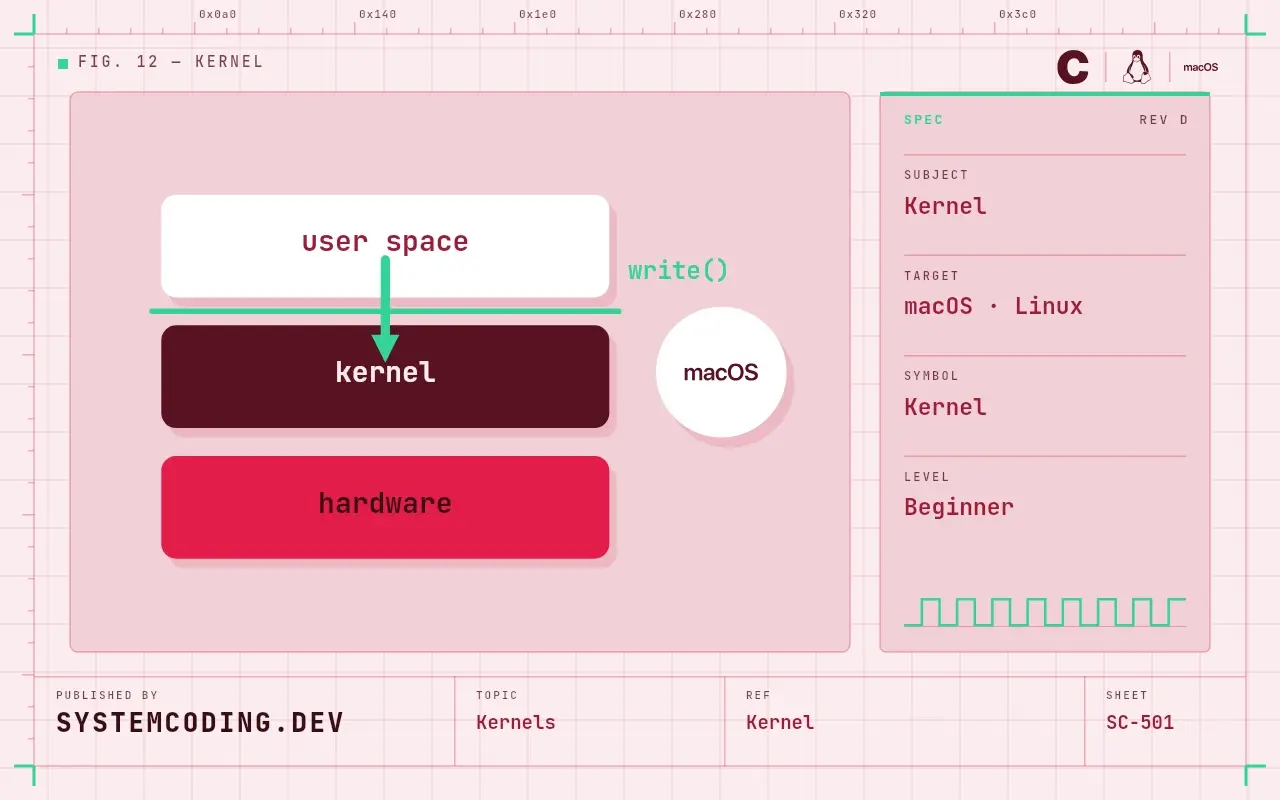
You do not need a debugger or a special kernel to look inside macOS. Two commands that ship with every Mac, sysctl and ioreg, read the kernel's own tables: sysctl prints the numbers and strings the kernel keeps about itself, and ioreg prints the tree of devices and drivers it has built. Both are read-only when you use them the way this post does, both need no password for most queries and both answer the questions you will ask first on an unfamiliar machine: how much memory, which chip, what is plugged in and what is attached to what. This post uses macOS 15 and shows how to read the output, filter it and avoid the traps. It is a hands-on companion to the guide to macOS kernel internals, where the same objects are explained from the inside.
What sysctl is
sysctl reads and writes the kernel's management information base: a tree of named values. Names are dotted, and the first component groups them. kern is general kernel state, hw is hardware, vm is virtual memory, net is networking, machdep is machine-dependent state and security is security policy. The tree is the same idea FreeBSD uses, since the BSD layer of macOS descends from it, though Apple has its own nodes.
List every name and value on the machine with sysctl -a. It prints well over a thousand lines, so you filter it. To see the names under one node, give the prefix:
sysctl hw.memsize hw.ncpu hw.pagesizehw.memsize: 17179869184
hw.ncpu: 8
hw.pagesize: 16384These are the values from one Mac. hw.memsize is the physical memory in bytes, so 17179869184 is 16 GiB. hw.ncpu counts logical processors, and hw.pagesize is the kernel page size. On Apple silicon it is 16384 bytes. On Intel Macs it is 4096. A script that assumes 4096 gives wrong answers on a new Mac, so read the value rather than assuming it.
Find the value you want
You rarely know the exact name. Use sysctl -a with grep to search names and values together:
sysctl -a | grep -i 'brand'
sysctl machdep.cpu.brand_stringmachdep.cpu.brand_string: Apple M2On an Intel Mac this prints the processor model string. Other useful names are:
| Name | What it reports |
|---|---|
kern.osversion | The build number of macOS, such as 24G84 |
kern.osrelease | The Darwin version, 24.6.0 for macOS 15 |
kern.boottime | When the system started |
kern.hostname | The host name |
hw.model | The Mac model identifier, such as Mac14,2 |
hw.physicalcpu | Physical cores, as opposed to logical processors |
hw.cpufrequency | Clock speed, on Intel Macs only |
vm.swapusage | Swap in use |
kern.maxfiles | System-wide limit on open files |
kern.maxproc | System-wide limit on processes |
net.inet.tcp.mssdflt | Default TCP maximum segment size |
Not every name exists on every Mac. hw.cpufrequency is absent on Apple silicon, where clocks change per cluster and no single value exists, and asking for a missing name prints unknown oid:
sysctl: unknown oid 'hw.cpufrequency'On Apple silicon the performance levels are in hw.perflevel0.* and hw.perflevel1.*: level 0 is the performance cores and level 1 the efficiency cores, with names such as hw.perflevel0.physicalcpu and hw.perflevel1.physicalcpu. These let you count the two kinds of core:
sysctl hw.perflevel0.physicalcpu hw.perflevel1.physicalcpuhw.perflevel0.physicalcpu: 4
hw.perflevel1.physicalcpu: 4Read a structured value
Some values are not plain numbers. kern.boottime returns a structure with seconds and microseconds, and sysctl formats it for you:
sysctl kern.boottime
sysctl -n kern.boottimekern.boottime: { sec = 1763800123, usec = 412345 } Sun Nov 22 08:08:43 2025
{ sec = 1763800123, usec = 412345 } Sun Nov 22 08:08:43 2025The numbers will be different on your Mac. The -n flag suppresses the name and prints only the value, which is what you want in a script. For a plain number, sysctl -n hw.ncpu prints 8 and nothing else, so you can use it directly:
echo "building with $(sysctl -n hw.ncpu) jobs"building with 8 jobsTo describe a node, sysctl -d prints its description when the kernel provides one, and sysctl -t prints its type, such as integer, string, struct or opaque, which tells you whether the value can be used as a plain number in a script.
Changing values
sysctl -w name=value writes a value, and needs root. Many nodes are read-only and refuse the write, and many that accept it are protected by System Integrity Protection or reset on reboot. Settings that persist across reboots belong in /etc/sysctl.conf, which macOS reads at boot, though Apple does not document it as a supported way to tune a modern system and some releases ignore it. Be careful with writes. A wrong value in net or vm can degrade the machine, and nothing in this post requires one. Treat sysctl as a read tool unless you have a specific, documented reason to write.
What ioreg is
ioreg prints the I/O Registry, the kernel's tree of every device and driver object that IOKit created. Where sysctl gives you numbers, ioreg gives you structure: a USB mouse is a node under a USB hub, which is under a USB controller, which is under a PCI or platform bus. Each node has a class, an identifier and a dictionary of properties.
Run it with no arguments and you get a long list of everything, so start with one of its useful forms:
ioreg -l | wc -l
ioreg -p IOService -w0 -d1 28712
+-o Root <class IORegistryEntry, id 0x100000100, retain 29>
+-o Mac14,2 <class IOPlatformExpertDevice, id 0x10000020f, registered, matched, active, busy 0 (1019 ms), retain 40>The line count depends on the machine. The options that matter are:
| Option | Effect |
|---|---|
-l | Show properties of each node, not only its name |
-p plane | Choose a plane: IOService, IODeviceTree, IOUSB and IOPower are common |
-d n | Limit the depth of the tree to n levels |
-r | Show the subtree rooted at the matched object, with -c or -n |
-c Class | Match nodes of a class |
-n Name | Match nodes by registry name |
-w 0 | Do not truncate long lines |
-a | Print as an XML property list, for scripts |
A plane is a view of the same registry organized by a relationship. The IOService plane follows provider and client links, so a driver sits under the device it drives. The IODeviceTree plane mirrors the hardware tree that the firmware supplied, and the IOUSB plane (on systems that provide it) shows the USB topology. The same object may appear in several planes.
Ask useful questions
The questions you will ask most are about what is connected. List USB devices with their names and vendor identifiers:
ioreg -p IOUSB -w0 -l | grep -E '"USB Product Name"|"USB Vendor Name"|"idVendor"|"idProduct"' | | "USB Product Name" = "USB Keyboard"
| | "USB Vendor Name" = "Example Inc."
| | "idVendor" = 1133
| | "idProduct" = 49948The devices depend on what you have plugged in, and on Apple silicon Macs the USB planes show up differently from Intel ones, in which case ioreg -c IOUSBHostDevice -l gets the same information by class. The identifiers are decimal: 1133 is 0x046d, the vendor ID, and 49948 is 0xc31c, the product ID. Convert them to hex with the shell's printf and the %x format to match against a lsusb-style database.
Find the machine's serial number, model and platform with the platform expert node:
ioreg -c IOPlatformExpertDevice -d 2 | grep -E 'model|IOPlatformSerialNumber|manufacturer'Find the battery, which is a node of class AppleSmartBattery, and read its cycle count:
ioreg -r -c AppleSmartBattery | grep -E 'CycleCount|MaxCapacity|DesignCapacity' "CycleCount" = 142
"DesignCapacity" = 6249
"MaxCapacity" = 100The names of properties and what they mean differ across models and releases, so read them as hints and not as a stable interface. -r shows the matched node and everything below it, and -c restricts it by class, so this prints the battery node and its properties only. For the disk drives, ioreg -c IOMedia lists storage media with sizes and whether each is a whole disk or a partition.
Read the tree, not just grep it
Grep finds fields, and the tree shows relationships, and relationships are the point of the registry. A part of the tree looks like this:
+-o AppleARMIODevice  <class IOService ...>
  +-o usb-drd0  <class AppleT8112USBXHCI ...>
    +-o AppleUSB30XHCIPort  <class AppleUSBHostPort ...>
      +-o USB Keyboard@01100000  <class IOUSBHostDevice ...>
        +-o IOUSBHostInterface@0  <class IOUSBHostInterface ...>
          +-o AppleUserUSBHostHIDDevice  <class ...>
The class names depend on the chip and release. Read the indentation as ancestry: the keyboard is a client of a USB port, which is a client of the USB controller, which is a client of the platform device. Each +-o is a registry entry, and the text in angle brackets is its C++ class. The state words after the identifier tell you where the object is in its life: registered means it has been announced to the registry, matched means a driver matched it, and active means it is live. An object that is registered but not matched is a device that no driver claimed, which is the first thing to look for when something does not work.
Use them from a script
For a program, parse structured output instead of text. ioreg -a writes an XML property list that plutil and PlistBuddy can read, and sysctl -n gives bare values:
ioreg -a -r -c IOPlatformExpertDevice > platform.plist
plutil -extract 0.model raw -o - platform.plistMac14,2The -a output is an array of dictionaries, so the first element is index 0, and the model is stored as data, which plutil prints as text for a raw extraction when the value is a string. Where it is not, use PlistBuddy -c "Print :0:model" platform.plist. For C programs, call sysctlbyname for sysctl values and the IOKit framework (IOServiceGetMatchingServices) for registry queries, which ioreg itself is built on.
Where this does not fit
Both tools describe state, not behavior. They will not tell you why a driver misbehaves, and they will not show you a function being called. For events over time use log stream and the unified log, and for system calls, tracing tools, which are limited by System Integrity Protection. The registry is also not a stable API: class names, property keys and the shape of the tree change between macOS releases and between chips, so a script that parses them is fragile, and a product that depends on them should use the documented IOKit and system frameworks instead. Finally, some properties include serial numbers and hardware identifiers, so do not paste raw ioreg -l output into a public bug report without reading it first.